
Connect to a host
Add a session, choose how you sign in, and import hosts from your SSH config.
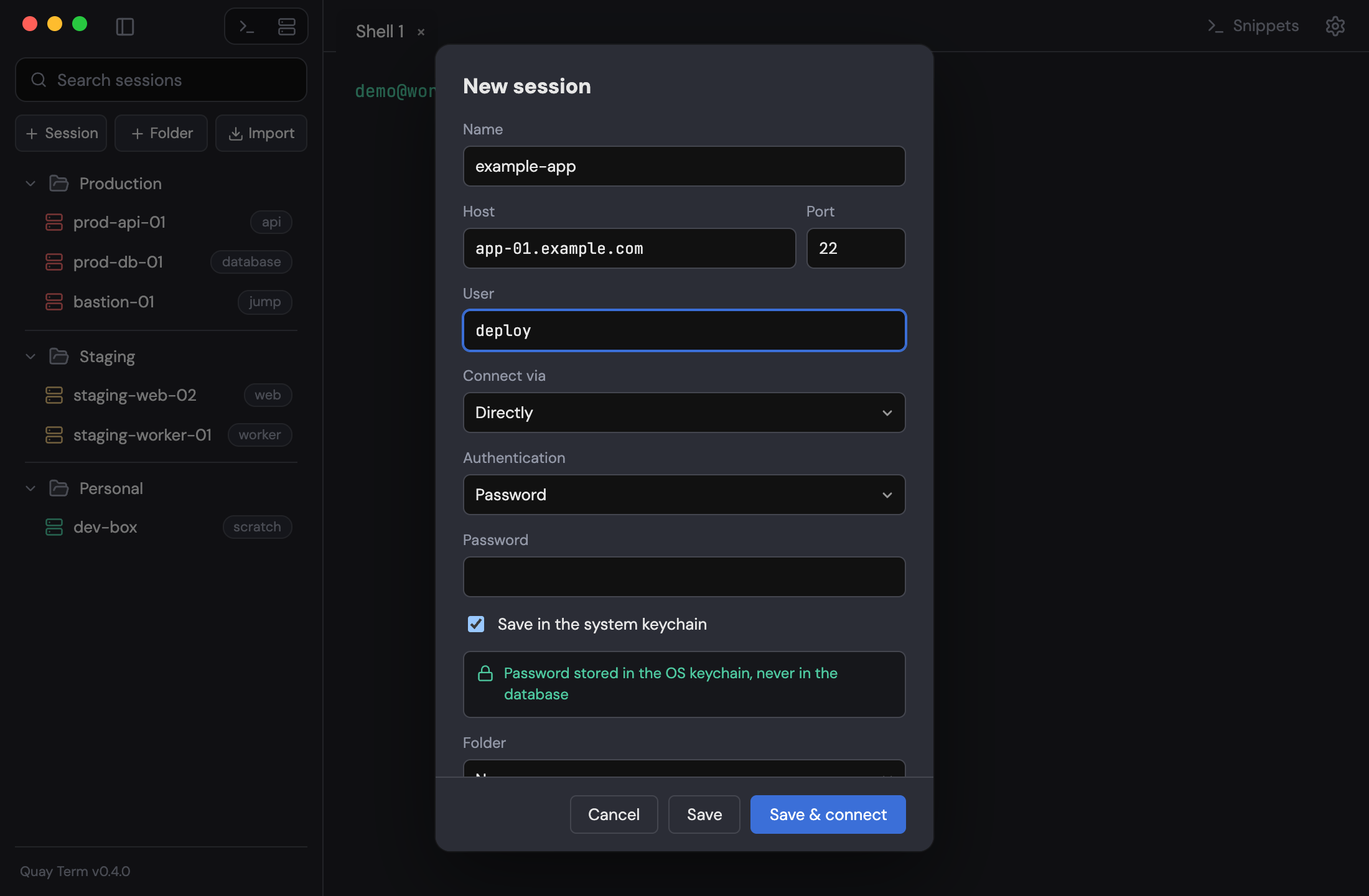
- Click + Session in the sessions sidebar. If the sidebar is hidden, press Cmd+B on macOS or Ctrl+Shift+B on Windows and Linux.
- Enter a name, the host, port and user.
- Under Connect via, keep Directly or choose a jump host.
- Under Authentication, choose how you sign in: password, private key, ssh-agent or keyboard-interactive. ssh-agent on Windows is not verified yet.
- Optionally set a folder, tags, a colour and an env label (prod, staging, dev).
- Click Save & connect.
Trust a new host
The first time you reach an unknown host you are asked to trust its fingerprint. A changed host key is refused.
Import from your SSH config
Already have hosts in ~/.ssh/config? Click Import in the sidebar. It brings in hosts and ProxyJump chains, and saves forwards as tunnels that stay off until you start them.
Env labels
An env label shows as a badge on the tab and pane, and pasting several lines into a prod session asks first.
Reconnect
When a session ends, a bar offers Reconnect, Files and Dismiss; press Enter or R to reconnect.