
Docs
Get from install to your first connection, then learn the rest of the app.
Get started
Install
Pick the file for your system on the download page. The installers are not code-signed or notarized, so the first launch needs one extra step on macOS and Windows. The install steps cover it.
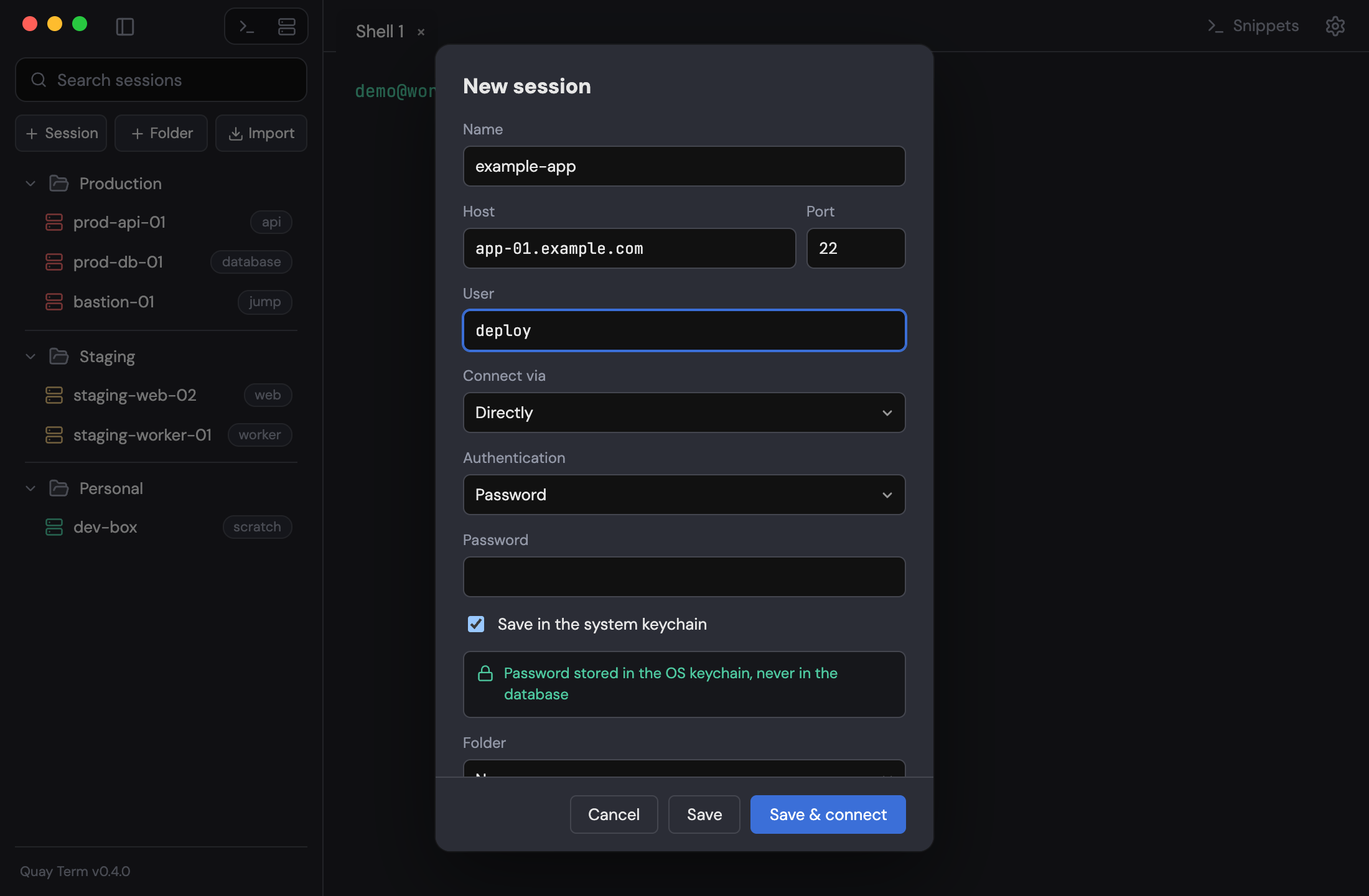
Connect to a host
- Click + Session in the sessions sidebar. If the sidebar is hidden, press Cmd+B on macOS or Ctrl+Shift+B on Windows and Linux.
- Enter a name, the host, port and user.
- Under Connect via, keep Directly or choose a jump host.
- Under Authentication, choose how you sign in: password, private key, ssh-agent or keyboard-interactive. ssh-agent on Windows is not verified yet.
- Optionally set a folder, tags, a colour and an env label (prod, staging, dev).
- Click Save & connect.
The first time you reach an unknown host you are asked to trust its fingerprint. A changed host key is refused.
Already have hosts in ~/.ssh/config? Click Import in the sidebar. It brings in hosts and ProxyJump chains, and saves forwards as tunnels that stay off until you start them.
An env label shows as a badge on the tab and pane, and pasting several lines into a prod session asks first. When a session ends, a bar offers Reconnect, Files and Dismiss; press Enter or R to reconnect.
Find anything
Open the command palette with Cmd+K on macOS or Ctrl+Shift+P on Windows and Linux. One search box covers actions, sessions, snippets and open tabs. Type >, @, ! or / first to search only actions, sessions, snippets or tabs.
Everyday use
Move files with SFTP
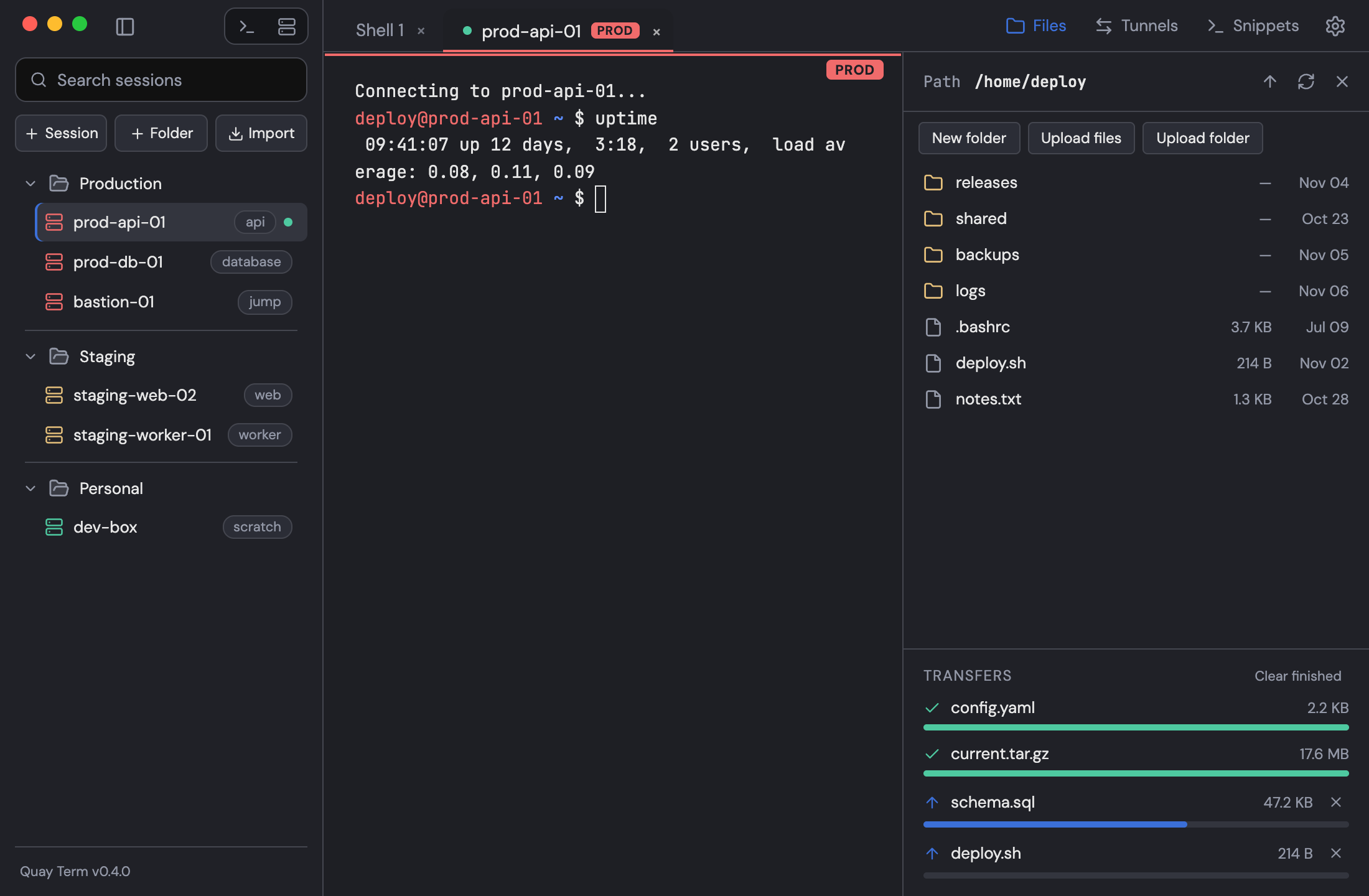
Toggle the files panel with Cmd+E on macOS or Ctrl+Shift+E on Windows and Linux. It uses the same login as the terminal tab, so you can browse, upload, download, rename, delete and make folders without signing in again. Drop files onto the panel to upload. The queue shows progress and lets you cancel.
Split panes
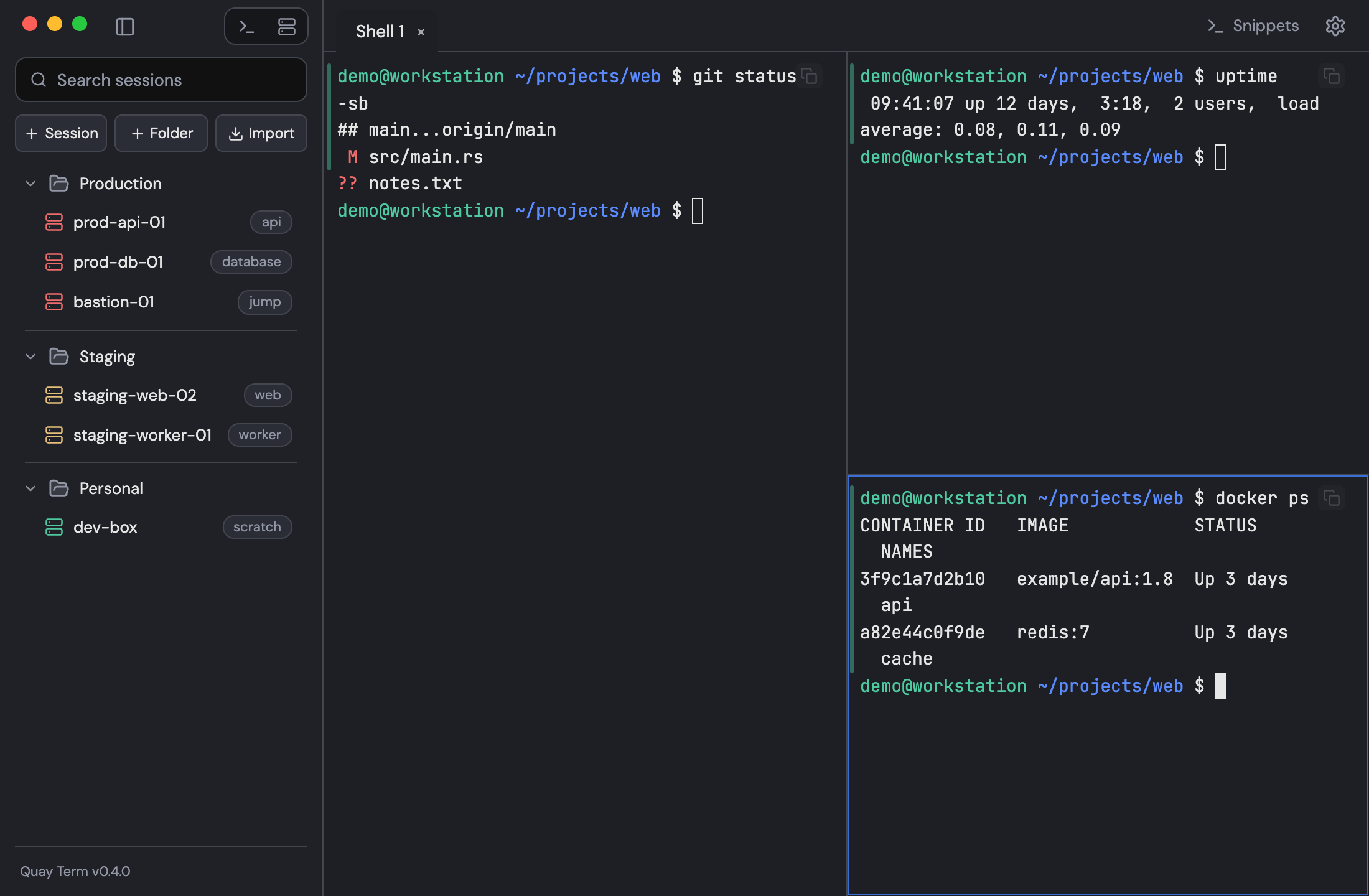
Split right with Cmd+D on macOS or Ctrl+Shift+D on Windows and Linux and split down with Shift+Cmd+D on macOS or Ctrl+Alt+D on Windows and Linux. To fill the tab with one pane, press Shift+Cmd+Enter on macOS or Ctrl+Shift+Enter on Windows and Linux; the other panes keep running. Drag a pane by the strip along its top edge onto another pane's edge to rearrange. The layout is saved with a session.
Type in several panes at once
Turn on broadcast for the focused pane with Alt+Cmd+B on macOS or Ctrl+Alt+B on Windows and Linux, or for every pane of a tab with Alt+Cmd+I on macOS or Ctrl+Alt+I on Windows and Linux. What you type or paste into one selected pane goes to the others too. Selected panes show a Broadcast badge, and a button in the tab strip shows the count and turns it all off.
Forward a port
On an SSH tab, click Tunnels, fill in New tunnel and click Start tunnel. Local, remote and dynamic (SOCKS5) forwards run over the tab's connection. Forwards saved with a session can start automatically.
Reuse commands with snippets
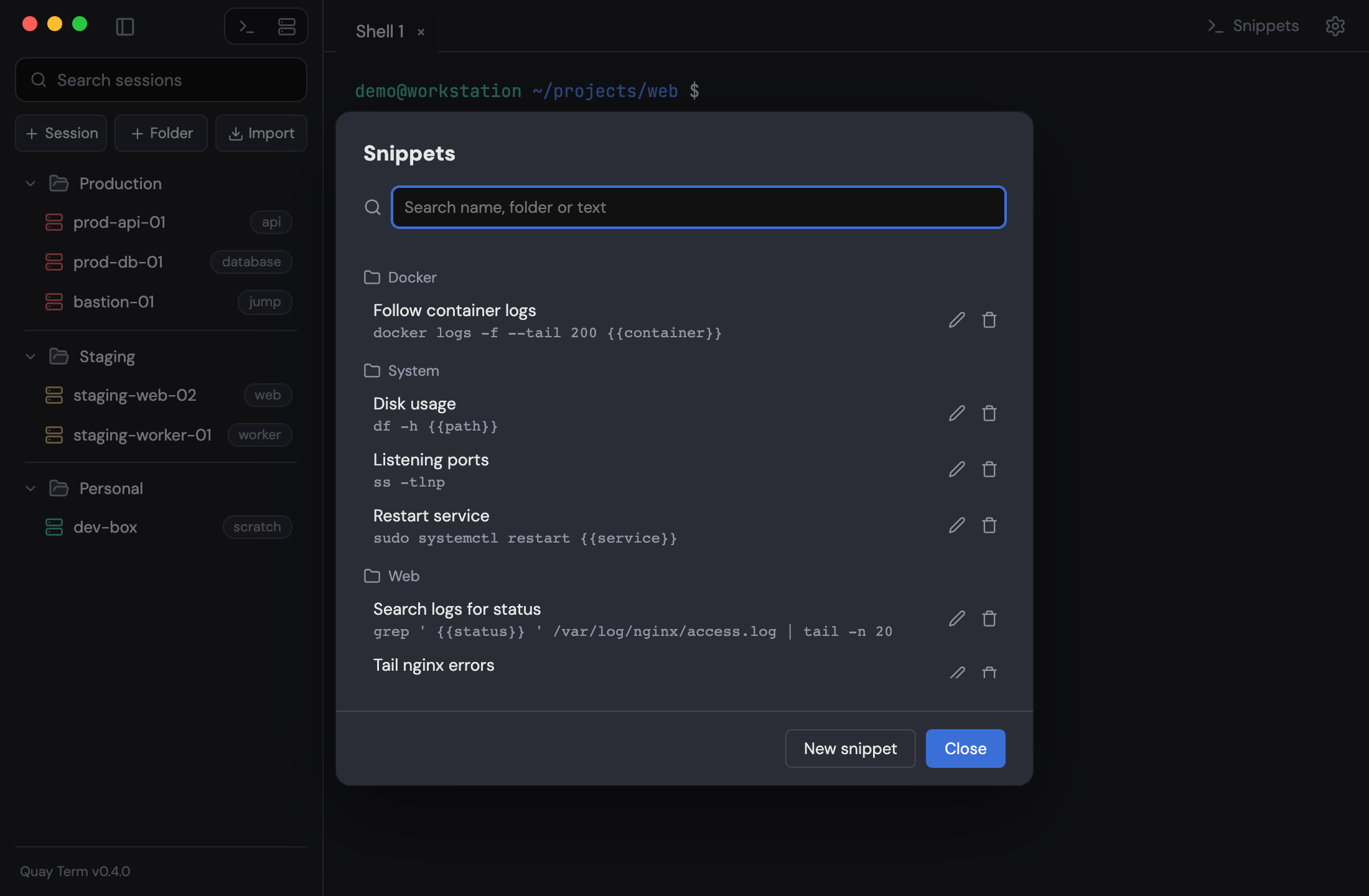
Click Snippets or press Shift+Cmd+S on macOS or Ctrl+Alt+S on Windows and Linux, then New snippet. Use {{name}} or {{name:default}} for the parts that change, and folders to keep them organised. Send a snippet to the focused pane, every pane of the tab, or the broadcast panes.
Command marks
A green or red bar shows beside each finished command, and you can jump between prompts or copy a command's output. Local zsh and bash shells get this automatically on macOS and Linux, without changing your dotfiles.
For a remote bash or zsh, run Enable command marks in this remote shell from the palette. It applies to that session only and writes no files. Marks do not work in local PowerShell and cmd tabs, or in the bash that ships with macOS.
Notifications
Quay Term can tell you when a long command finishes or a session drops while the app or that tab is in the background. Notifications are off until you turn them on under Settings > Terminal, where you also choose how many seconds counts as long. Long-command alerts need command marks. Mute one pane with Alt+Shift+Cmd+M on macOS or Ctrl+Alt+Shift+M on Windows and Linux.
Copy and paste
- Text you select is copied when you release the mouse. Turn this off under Settings > Terminal.
- Cmd+C on macOS or Ctrl+C on Windows and Linux copies the selection. With nothing selected, it still interrupts the running command.
- Ctrl+Shift+C copies and Ctrl+Shift+V pastes. On Windows and Linux, right-click copies a selection or pastes.
- Cmd+click on macOS or Ctrl+click on Windows and Linux opens http and https links in your browser.
Make it yours
Shortcuts
The ones you will use most. You can rebind every shortcut in Settings.
| Action | macOS | Windows / Linux |
|---|---|---|
| Command palette | Cmd+ | Ctrl+ |
| New local tab | Cmd+ | Ctrl+ |
| Close pane or tab | Cmd+ | Ctrl+ |
| Split pane right | Cmd+ | Ctrl+ |
| Split pane down | Shift+ | Ctrl+ |
| Zoom pane to fill the tab | Shift+ | Ctrl+ |
| Toggle sessions sidebar | Cmd+ | Ctrl+ |
| Toggle files panel | Cmd+ | Ctrl+ |
Themes and layout
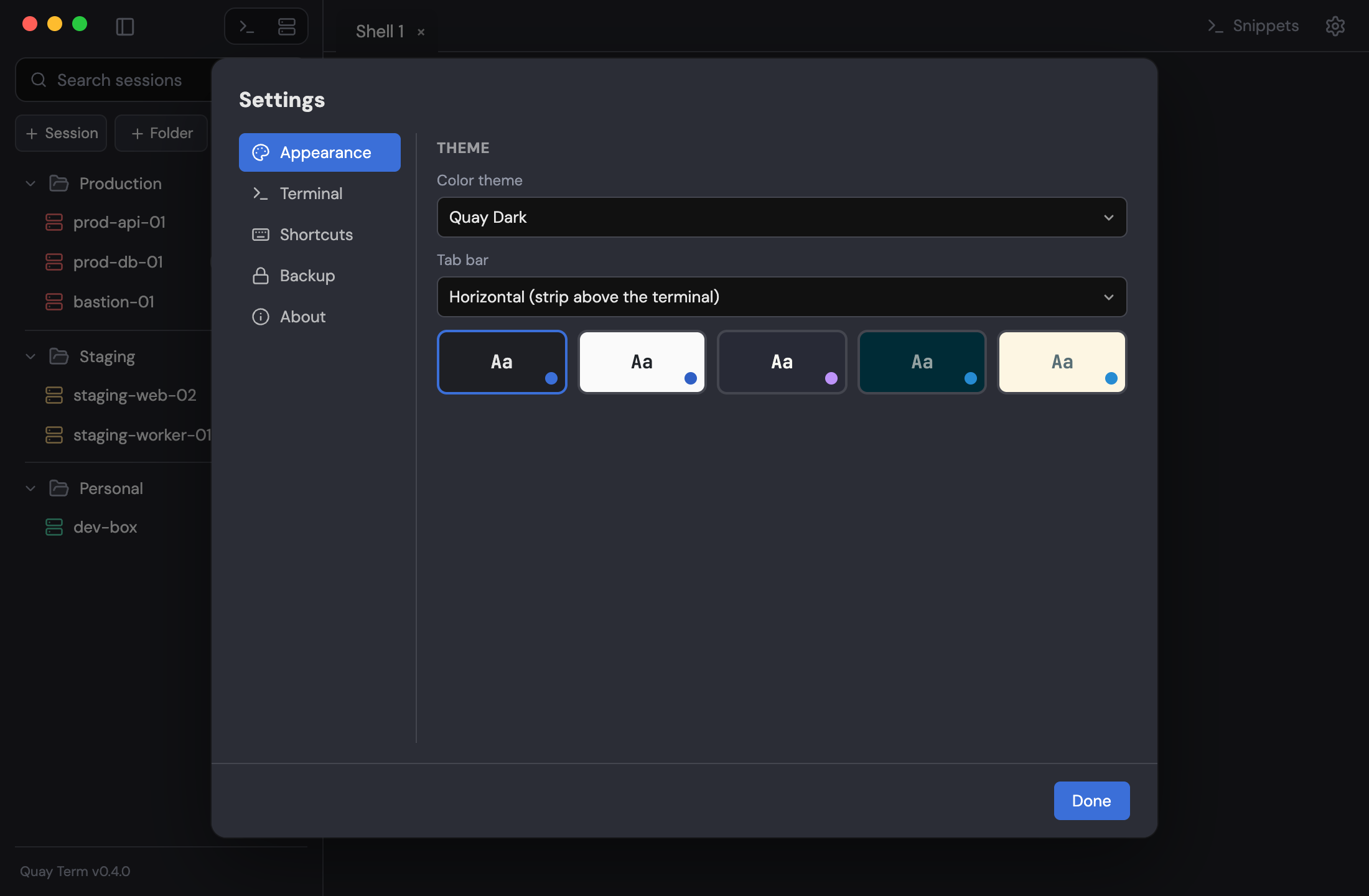
Five themes are built in, and Quay Dark is the default. Under Settings > Appearance you can also switch the tab bar between a horizontal strip and a vertical list that shows each host and env label.
Quay Dark
Quay Light
Dracula
Solarized Dark
Solarized Light
Back up your setup
In Settings > Backup, set a master password of at least 8 characters and choose Export…. You get one encrypted file of your sessions and snippets. Secrets are included only if you choose. Importing only adds what is missing, so existing sessions stay as they are.
Updates
Go to Settings > About, choose Check for updates, then Install and restart. Quay Term also checks shortly after launch and tells you if there is a newer version. Nothing downloads until you click, and you can turn the check off under Settings > Terminal.