
Your SSH hosts, terminals and file transfers in one window.
A free desktop app for macOS, Windows and Linux. Save sessions, split panes, forward ports and move files, with prod and staging labels so you can tell your servers apart.
- Free
- Open source
- No telemetry
- Runs on macOS, Windows and Linux
Version 0.4.0
macOS and Windows ask you to confirm the first time you open it. How to open it
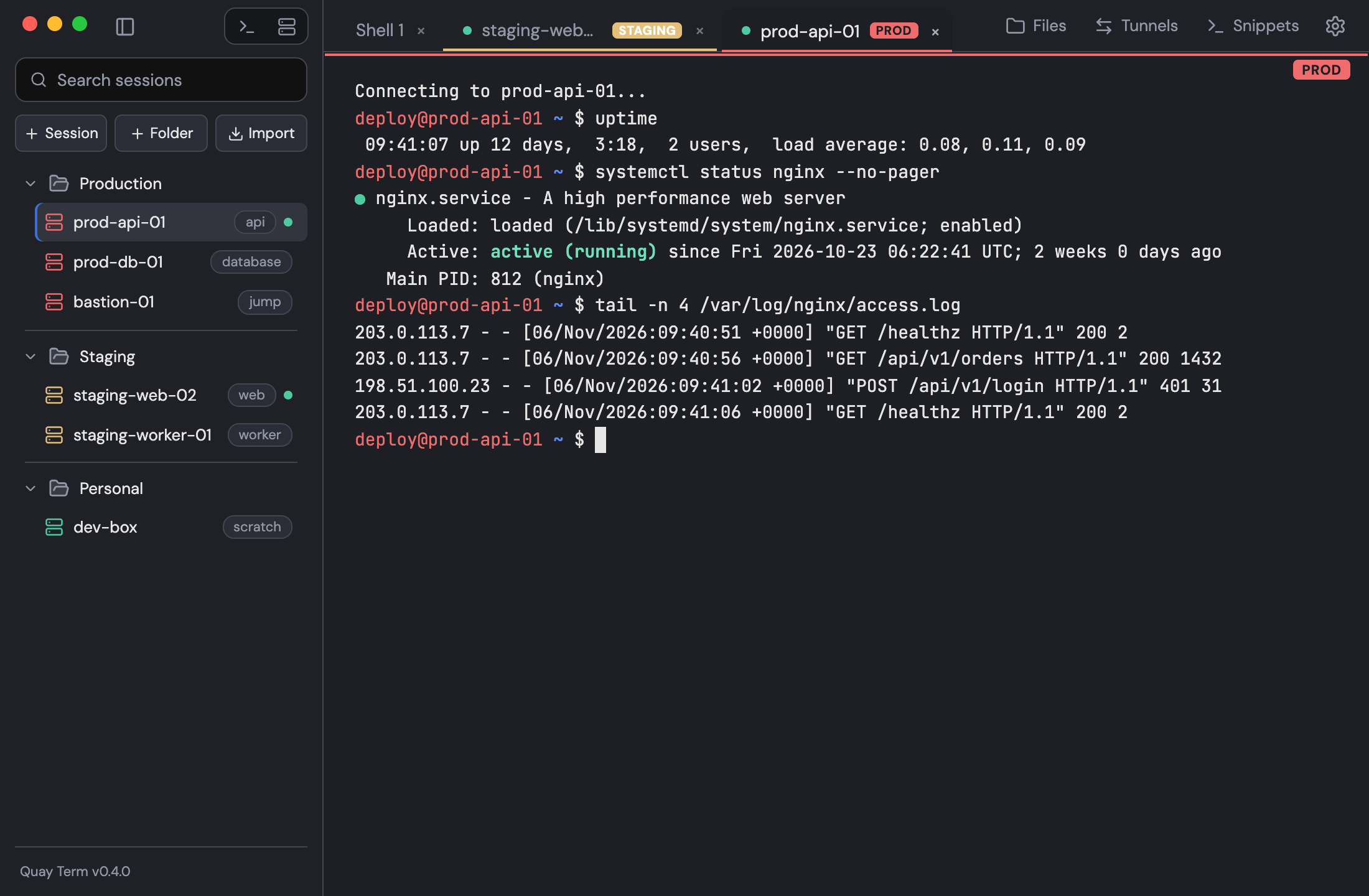
For developers and sysadmins who juggle many hosts
Every host in one place
Saved sessions with folders, tags and search, imported straight from ~/.ssh/config.
Jump hosts and tunnels
Chain ProxyJump hosts and forward ports over the same connection as your terminal.
Prod never looks like staging
Colour and env labels on every tab, and a confirm before pasting multiple lines into prod.
See it in 45 seconds
A tour of the app: prod and staging labels, split panes, SFTP transfers, passwords in your keychain, snippets with variables, five themes and private defaults. Music only, no narration.
What it does
Connect
Reach every host the way you already do.
SSH with the sign-in methods you already use
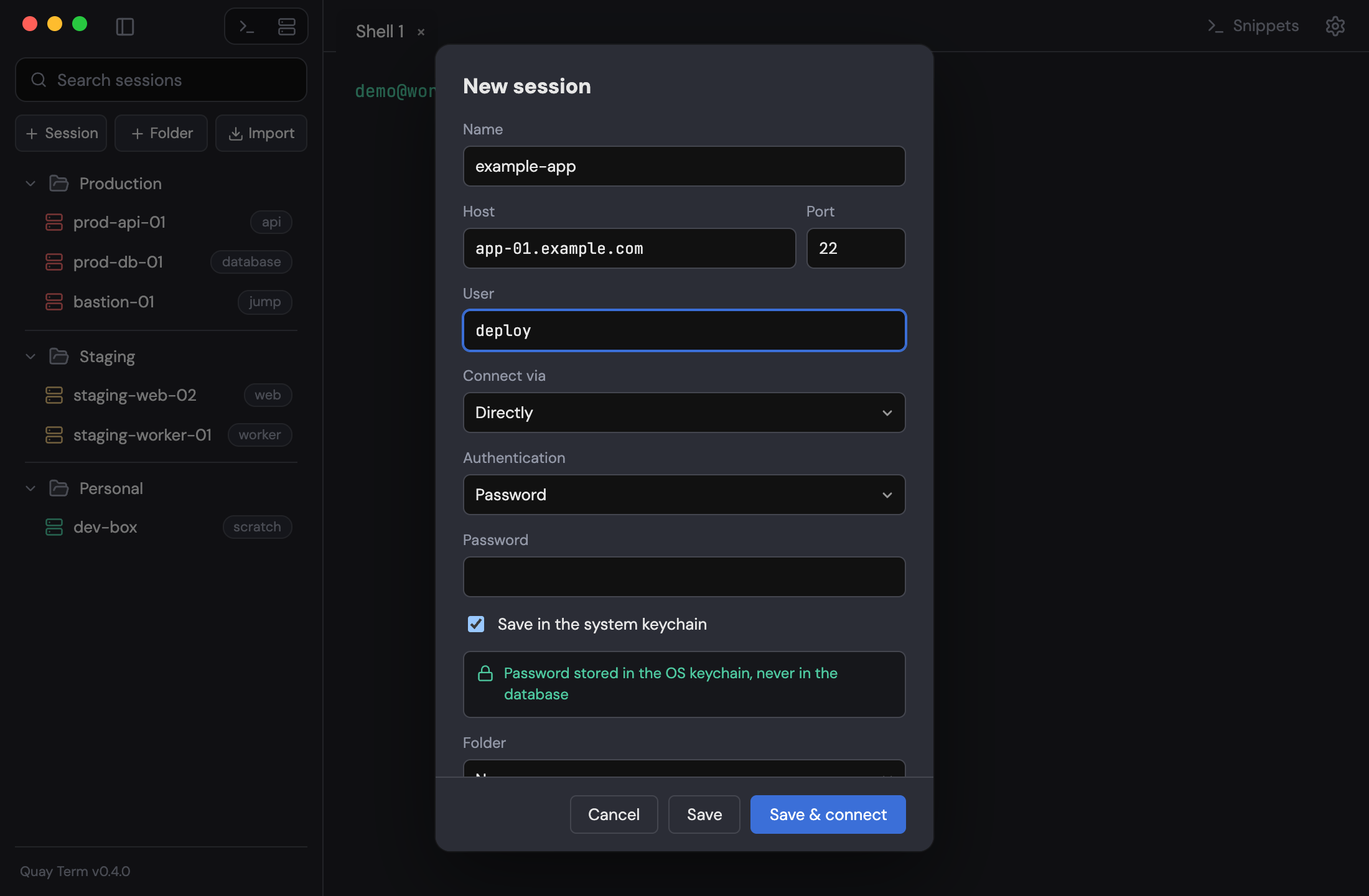
Password, private key, ssh-agent and keyboard-interactive, including one-time codes. ssh-agent on Windows is not verified yet.
Jump hosts and port forwards
Chain ProxyJump hosts per session. Local, remote and SOCKS5 forwards run over the tab's connection and can start automatically.
Saved sessions you can tell apart
Folders, tags, search and import from ~/.ssh/config. Colour and env labels on every tab, and a confirm before pasting multiple lines into prod.
Work
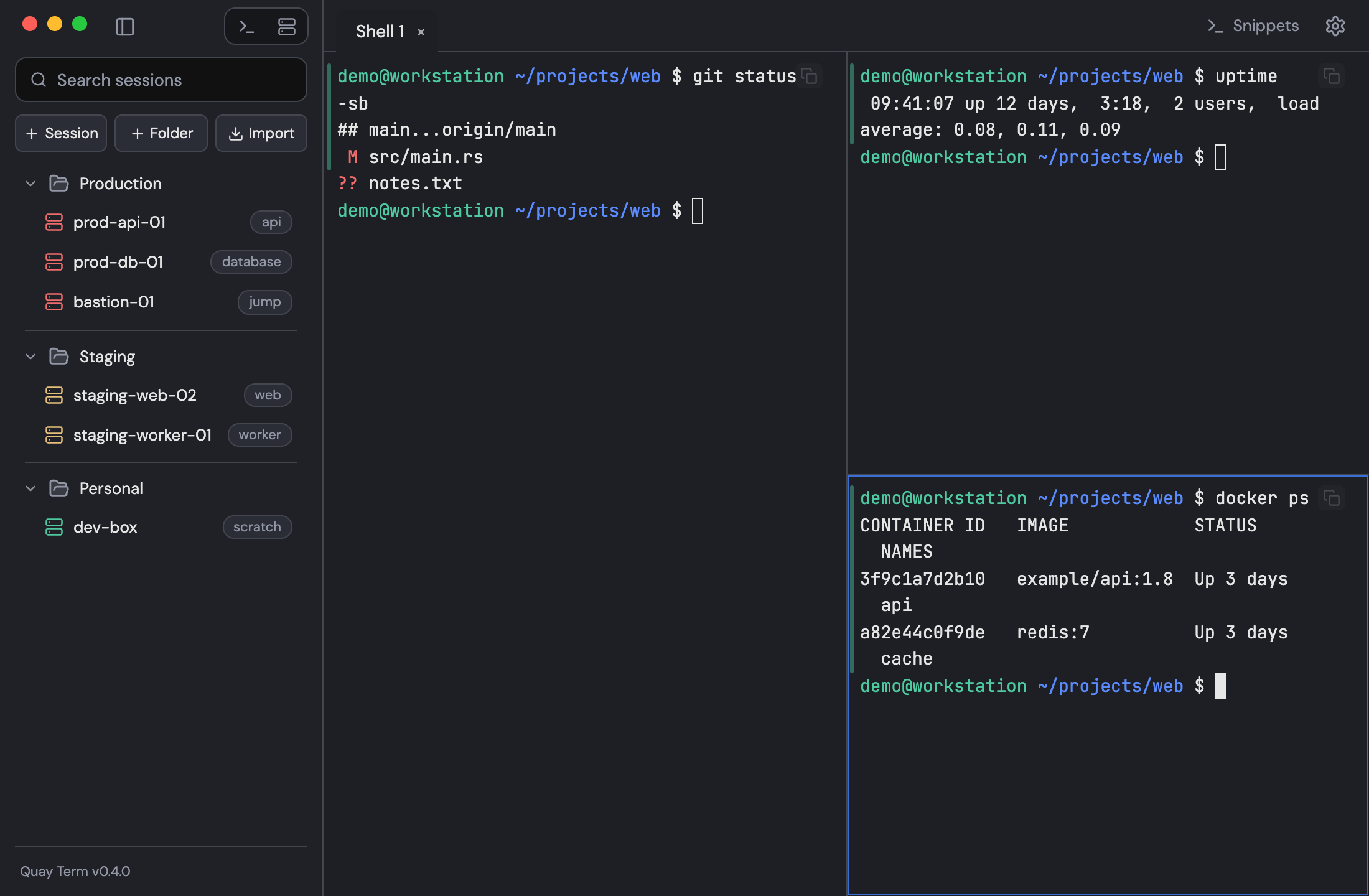
Keep several shells in view and repeat less typing.
Tabs and split panes
Split, zoom and drag panes to rearrange them, and mirror typing to selected panes. The layout is saved with the session.
Command palette and snippets
One search box for actions, sessions, snippets and tabs. Snippets take {{variables}} and can go to one pane or many.
Command marks and optional notifications
Green or red bars beside finished commands, jump between prompts and copy output. Automatic in local zsh and bash on macOS and Linux, not yet in local Windows shells. Opt-in alerts when long commands finish.
Transfer
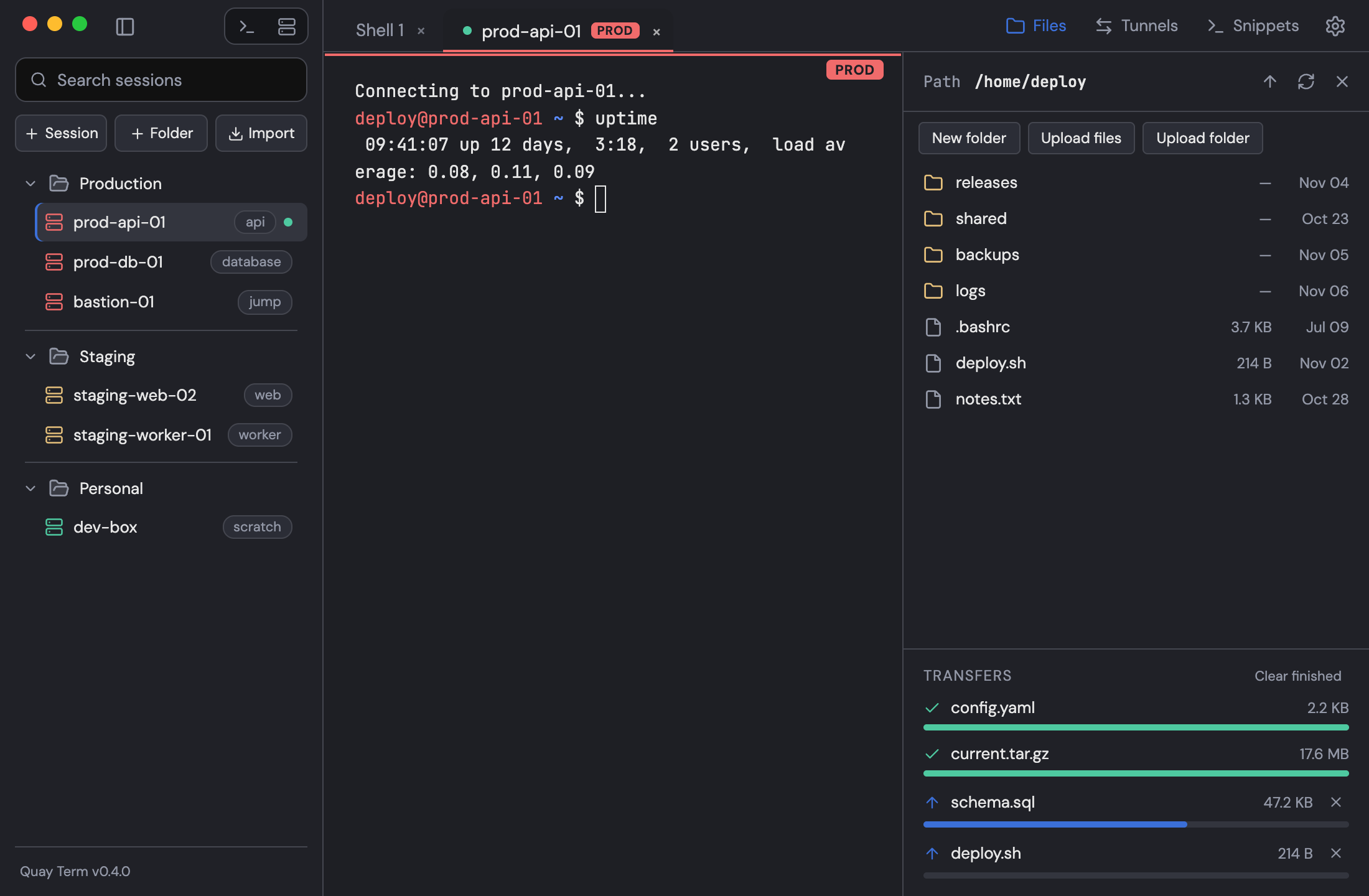
Move files without opening a second app or signing in again.
SFTP browser with a transfer queue
Browse, upload, download, rename and delete on the same login as the terminal. Drop files to upload, and follow or cancel them in the queue.
Make it yours
Five themes, down to the terminal palette.
Each theme has its own status colours and a full 16-colour terminal palette. Choose one in Settings, where you can also set the terminal font, size and cursor.
Quay Dark
Default
Quay Light
Dracula
Solarized Dark
Solarized Light
Security and privacy
Your secrets stay on your machine.
Passwords live in your OS keychain, every host key is checked, and the app sends no telemetry.
Secrets
Passwords and key passphrases go in your OS keychain, or in a file sealed with a master password where there is no keychain. The sessions database only records that a secret exists.
- macOS Keychain
- Windows credential store
- Secret Service
Known hosts
An unknown host asks you to trust its fingerprint. A changed key refuses the connection. Checked at every jump host.
- OpenSSH known_hosts
Encrypted export
Back up your sessions to an encrypted file. Secrets are included only if you choose.
- Argon2id
- ChaCha20-Poly1305
Signed updates
Each release is verified against a public key built into the app. Nothing downloads until you click Install, and the check can be turned off.
No telemetry
No analytics or crash reporting. The only request the app makes by itself is the update check against GitHub Releases.
Coming next
Planned for upcoming releases. The previews show the idea, and details may change.
Command history search
Find a command you ran on any host and drop it into your prompt without running it. History is only recorded if you turn it on.
More capable snippets
Pick values from choice lists, set defaults for each session, and save a command from a block as a new snippet.
Input assist
Host suggestions after ssh, scp or sftp, and remote path completion when you ask for it. Nothing is typed until you accept.
Install
The installers are not code-signed or notarized, so macOS and Windows ask you to confirm the first time you open the app.
macOS
- Open the .dmg and drag Quay Term to Applications.
- Open the app. When macOS blocks it, go to System SettingsPrivacy & Security, choose Open Anyway, and confirm.
- If macOS says the app is damaged, run this and open it again:
xattr -dr com.apple.quarantine "/Applications/Quay Term.app"
Windows
- Run
Quay-Term-Setup.exe. It installs for your user only, with no administrator prompt, and lets you pick a folder. - If SmartScreen says “Windows protected your PC”, choose More info, then Run anyway.
Linux
Run the command for your package from the folder you downloaded to.
- AppImage
chmod +x Quay.Term_0.4.0_amd64.AppImage && ./Quay.Term_0.4.0_amd64.AppImage- Debian or Ubuntu
sudo apt install ./Quay.Term_0.4.0_amd64.deb- Fedora or RHEL
sudo dnf install ./Quay.Term-0.4.0-1.x86_64.rpm
- To update from 0.2.1 or later, openSettingsAboutCheck for updatesthen Install and restart.